

Genshin Impact Controller Support on PC, Phone and Console
Genshin Impact plays with a touch screen, a controller, or a keyboard and mouse. See which platforms take a controller, how to switch the control type in the settings, what each way of playing is good at, and the small changes that make touch controls easier.
Contents
- Where Genshin Impact controller support works
- How to switch the control type in the settings
- Touch, controller or keyboard: what each is good at
- Touch screen: nothing to carry
- Controller: comfort for long sessions
- Keyboard and mouse: precision
- Which Genshin Impact controls to choose
- Frequent questions about controllers and controls
- Does Genshin Impact support a mobile controller?
- Why is my controller not working in Genshin Impact?
- Can I change the buttons?
- Is a controller better than touch?
- One account on every device, and Genesis Crystals on Mas4Games
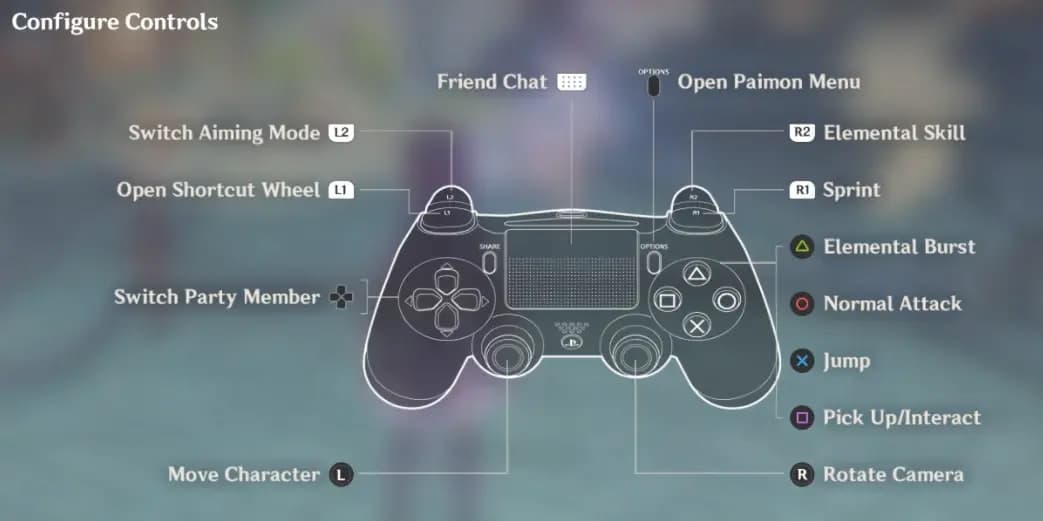
Genshin Impact controller support covers PlayStation, Xbox, PC, iPhone and iPad, and Android, which received it later than the others. You switch it on in the settings, under Controls, with the Control Type option, after connecting the controller. Touch is the handiest way to play, a controller the most comfortable, and a keyboard and mouse the most precise.
Where Genshin Impact controller support works
- PlayStation and Xbox: you play with the console's own controller.
- PC: the game starts with keyboard and mouse. Xbox and PlayStation controllers work, but the game does not switch by itself when you plug one in. You change the control type in the settings.
- iPhone and iPad: Bluetooth controllers that the system supports work in the game, including Xbox and PlayStation controllers.
- Android: controller support arrived long after iOS, and it depends on an up-to-date game and on the controller model. If the Controller option does not appear in your settings, update the game first. If it still does not appear, your device or controller is probably not supported.
Your account is not tied to one way of playing. Sign in with the same account and server on a phone and a PC and you continue the same save: touch on the bus, controller at home.
How to switch the control type in the settings
- Connect the controller to your device first, by cable or Bluetooth.
- Open the Paimon Menu and go to Settings, then Controls.
- Set Control Type to Controller.
- The interface changes to button prompts. To go back, open the same setting and choose the keyboard or the touch screen again.
The same Controls screen holds the camera sensitivity sliders. The PC version also has a separate Key Bindings tab where keyboard actions can be reassigned. If you play with a controller, look through the Controls screen for a button layout option before you decide the default layout is not for you.
Touch, controller or keyboard: what each is good at
Touch screen: nothing to carry
Touch is best for short sessions: daily commissions, spending Resin, one quick boss. Menus and the map are fastest by touch because you tap what you want.
It is weakest in long fights. Your thumbs cover part of the screen, moving the camera while attacking takes practice, and precise aiming with a bow is slow.
Small changes help a lot:
- Adjust camera sensitivity in the Controls settings until one comfortable swipe turns the camera around. Aiming has its own slider.
- Go through the whole Controls tab once. Depending on your version and device, it may offer more options for the touch layout and for aiming, and they are worth five minutes.
- Choose smooth over pretty. In the Graphics settings, a stable frame rate with lower effects makes touch input feel more exact than high settings that stutter.
- Pick a main damage dealer who fights up close. Melee attacks turn toward the nearest enemy on their own, while a bow character who relies on aimed shots is the hardest kind to play on a phone.
Controller: comfort for long sessions
A controller is best for long play. Both hands rest, the whole screen is visible, and the analog stick lets you walk, run and turn smoothly. Fighting with melee characters feels natural, with attack, skill and dash all under your fingers.
It is weakest at anything that needs a pointer. Aiming a bow is slower than with a mouse, you move through the map and menus with a cursor, and typing in the co-op chat takes patience.
On a phone, a controller also fixes the biggest problem of touch, because your hands leave the screen. A clip-on controller, or a stand with a regular one, turns the phone into a small console.
Keyboard and mouse: precision
Keyboard and mouse are best for aiming and speed. The mouse makes aimed shots easy and turns the camera at any speed. Characters switch on the number keys, and by default the Elemental Skill is on E and the Elemental Burst on Q, so a full team rotation becomes a short string of key presses. Menus and chat are fast as well.
The weak side is comfort over many hours, and you need a desk.
If your mouse has side buttons, the Key Bindings tab lets you put your most used actions on them. Our Genshin Impact PC settings guide covers the graphics side.
Which Genshin Impact controls to choose
- You play in short breaks on a phone: stay on touch, and tune the sensitivity.
- You play for hours, on any device: use a controller.
- You love bow characters or want the fastest rotations: use keyboard and mouse.
- You play in two places: use both. The same account works on each device.
No control type makes a team stronger. Hard content such as the Spiral Abyss is cleared by phone players every cycle. The best controls are the ones you practice with.
Frequent questions about controllers and controls
Does Genshin Impact support a mobile controller?
Yes on iPhone and iPad, with Bluetooth controllers the system supports. Android received controller support later, so it needs a current version of the game and a supported controller.
Why is my controller not working in Genshin Impact?
The usual cause is the Control Type setting, which stays on keyboard or touch until you change it by hand. Connect the controller before you open the game, update the game, then set Control Type to Controller.
Can I change the buttons?
On PC, yes: the Key Bindings tab reassigns keyboard actions. For a controller, check the Controls screen for a layout option.
Is a controller better than touch?
For long sessions and for seeing the whole screen, yes. For quick daily tasks, touch is faster to pick up. Neither changes your damage.
One account on every device, and Genesis Crystals on Mas4Games
However you hold the game, your progress lives on your UID and server. If you decide to top up, the paid currency is Genesis Crystals, which convert to Primogems. Genshin Impact Genesis Crystals on Mas4Games are loaded by UID and server with no password asked, and the help center has live support.
Topping up Genshin Impact?
See packages